
Analytics
How I Use Google Tools When Working on a Website
Building a website is one thing but, making sure Google can find it, checking what visitors are doing, and keeping product information connected is another part of the job. That is something I have been learning while working on websites like sibavitamin.com, sibavitamin.co, my-pets.pl, demisalon.pl, and holisha.pl. Each project has different needs, but I keep coming back to the same questions.
Can Google find the website? Are the important actions being tracked? Is the information reaching Analytics? If it is an online store, does Google have the right product details? I do not look at all of this as one setup that you finish and forget. I see it more like a workflow. You connect something, test it, check what happens, and come back to it when the website changes.
For this post, I want to explain how I approach Google Search Console, Google Tag Manager, Google Analytics, and Google Merchant Center. This is my way of connecting the pieces, based on what I have been working on and learning.
Starting with Google Search Console
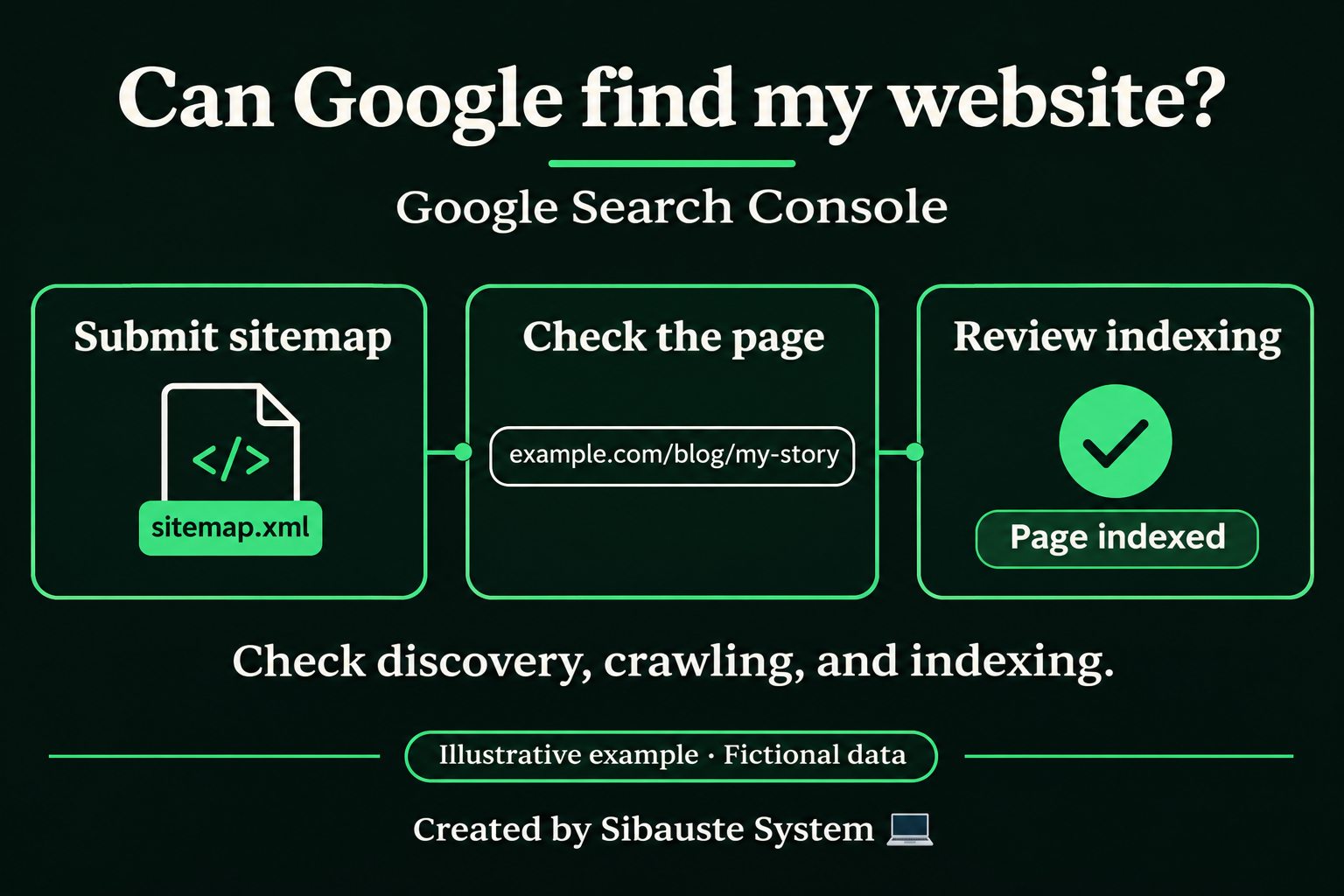
One of the first things I want to know is whether Google can find the website and its pages. That is where I start with Google Search Console. After verifying ownership of the website, I submit its sitemap and inspect important URLs to see what Google reports about them. I learned that submitting a sitemap does not mean every page will immediately appear in search results. It helps Google discover the pages, but discovery, crawling, and indexing are different things.
For example, after publishing a blog, I can inspect its URL to check whether Google has indexed it. If it has not, I can look at the information Search Console provides instead of assuming that publishing the article was enough.
I also ran into this when moving my own website from a GitHub Pages address to sibaustesystem.com. Having the new domain working in my browser was only part of it. I also needed to check the old address, the redirect, the sitemap, and which address the website identified as its main URL. That experience made Search Console feel much more useful to me. It gives me a place to check what Google sees, which can be different from what I see when I open the website myself.
Deciding What I Actually Want to Track
Before adding tracking, I think it helps to ask what I want to understand. It is easy to connect tools and collect numbers without knowing what those numbers are supposed to tell me. For a personal website, I might want to know whether someone clicks the contact button. For an online store, I might want to understand product views, cart activity, or purchases. The useful actions depend on the website.
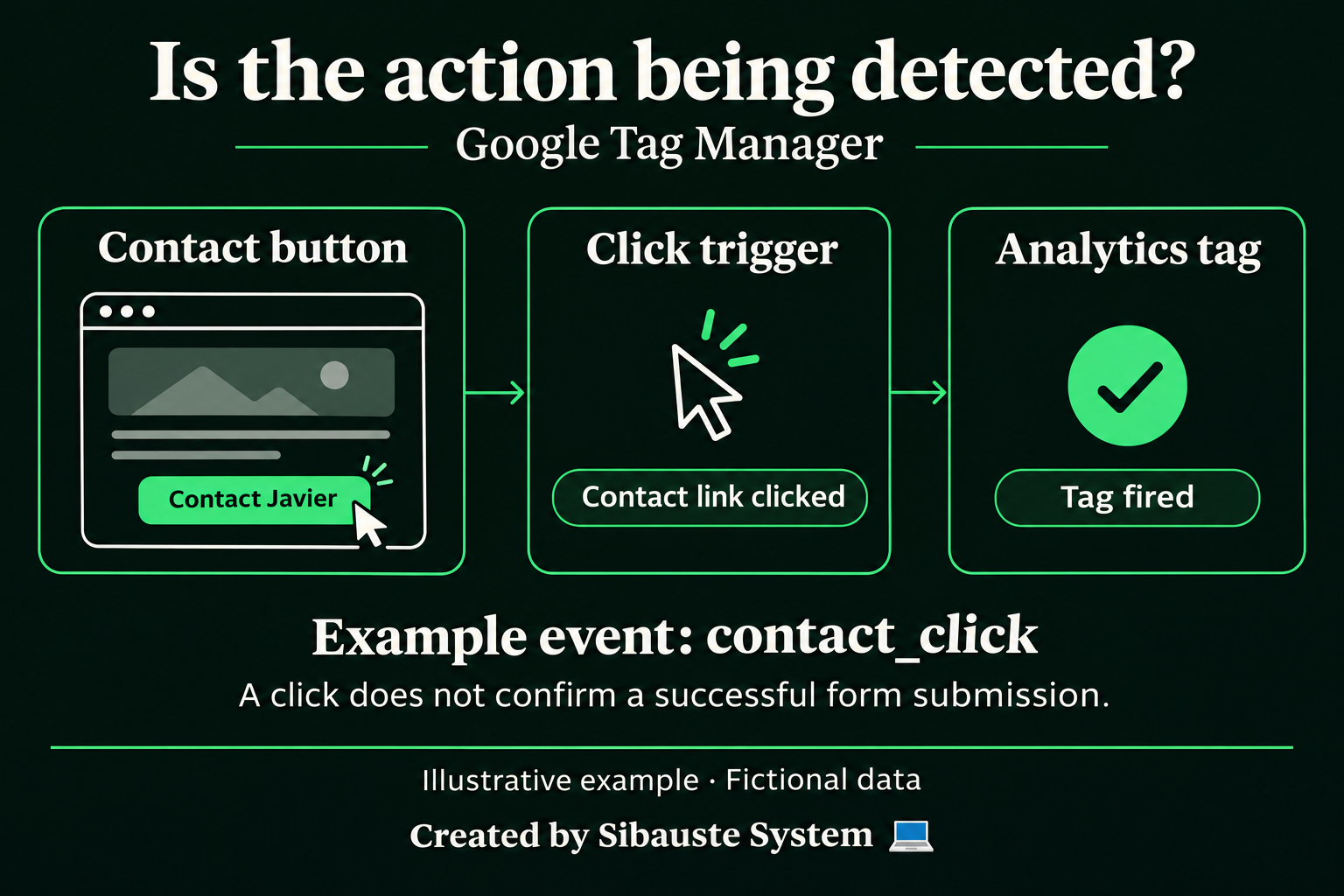
For a simple example, let’s say I want to track a visitor clicking “Contact Javier.” That click tells me someone showed interest in contacting me. It does not tell me they completed the form or that I received their message. Those are separate steps, and I think that distinction matters.
Using Google Tag Manager to Connect the Action
Google Tag Manager is where I can organize tags and decide when they should run. For the contact button example, the idea is simple. A visitor clicks the button, a matching trigger detects that click, and an Analytics event tag sends an event called contact_click. Before relying on it, I want to test that the trigger responds to the correct button and that the tag fires when expected. Otherwise, I could be tracking the wrong link or counting actions I never meant to include.
Something I keep in mind is that more tracking does not automatically mean better tracking. I would rather understand a few useful events than have a long list of events that I cannot explain. I also need to check whether the website’s platform or an existing integration already handles the tracking before adding another setup. The goal is to understand what is happening without creating duplicate or confusing information.
Checking Whether the Information Reaches Google Analytics
After checking Tag Manager, I move to Google Analytics. A tag firing is a useful test, but I still want to confirm that Analytics receives the event. For this example, I would look for contact_click using the available testing tools, such as DebugView or Realtime. This is where the connection starts to make sense. I perform an action on the website, check that it is detected, and then confirm that the information arrives where I expect it.
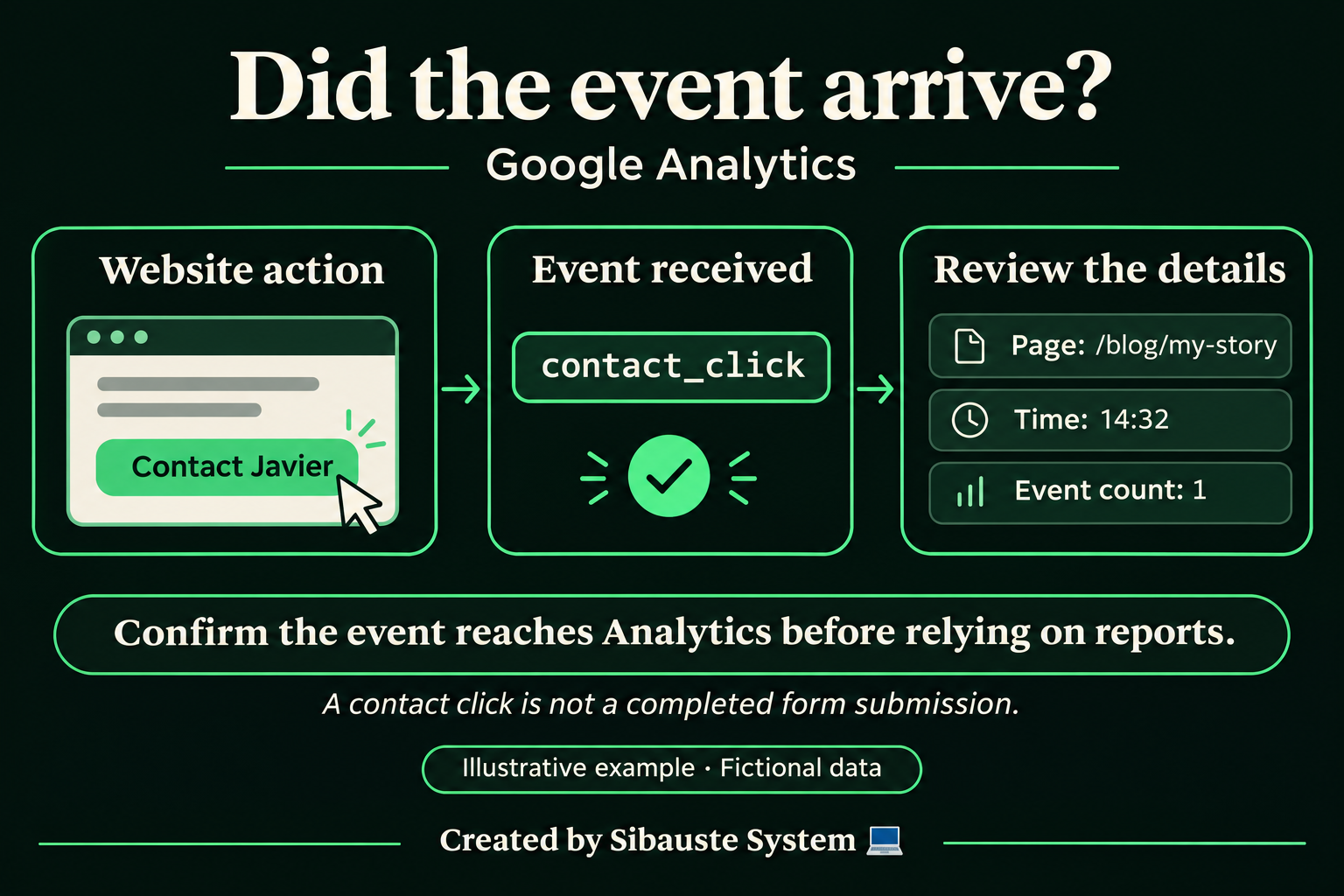
Once that is working, I can start asking more useful questions. Are people reaching the pages I want them to see? Are visitors coming from search, social media, or another website? Are they clicking the contact button?I try to be careful with the conclusions, though. A contact click is not a completed inquiry, and a visitor leaving a page does not explain why they left. The numbers can help me decide what to investigate. They do not always give me the whole answer.
Adding Merchant Center When There Are Products
For an online store, Google Merchant Center adds another part to the workflow. Here, I am looking at the product information being sent to Google. Things like the product link, price, availability, and shipping details need to be accurate and consistent with the store. For example, if a product is available on the website but its submitted information says it is out of stock, that is something to investigate. The same applies when prices or shipping details do not match.
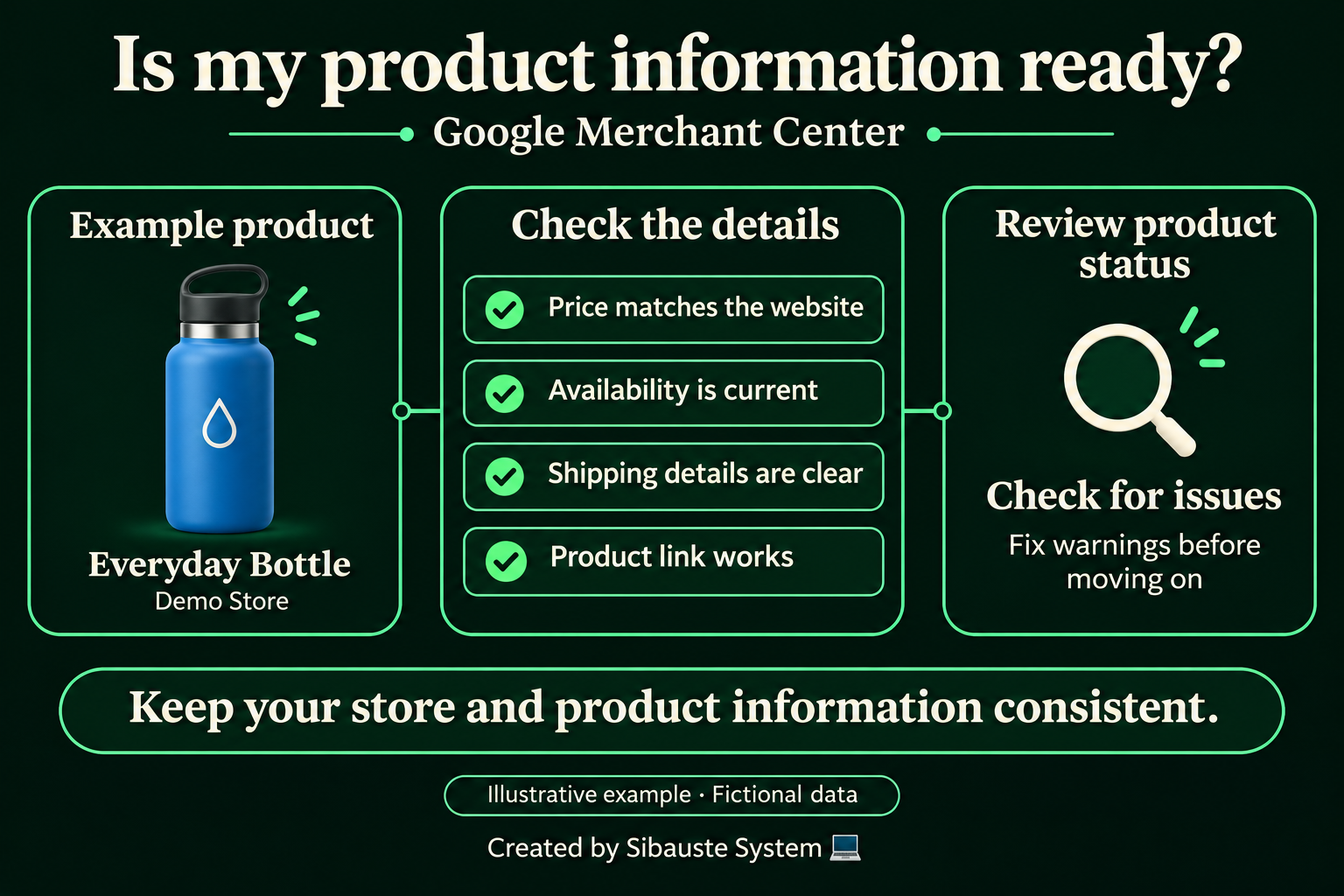
This is also where I have learned not to treat every warning as the same problem. Sometimes the issue is connected to a product’s information. Other times, it may involve a broader account or website requirement. I need to read what Google is reporting and check the relevant settings instead of changing random things and hoping it works. Having products connected does not guarantee approval, visibility, or sales. It gives me another system to maintain and review as the store changes.
How I Put the Pieces Together
The way I think about these tools now is that each one helps answer a different question. Search Console helps me check how Google discovers and indexes the website. Tag Manager helps me control when tracking tags run. Analytics helps me review the activity those connections collect. Merchant Center helps me manage the product information connected to Google when I am working with an online store.
They work together, but one tool does not replace the others. My basic approach is to start with the website, decide what needs to be checked, connect the relevant tool, and test the result. If something looks wrong, I go back through the steps instead of assuming the final report is the problem.
Where Codex Fits into My Work
Codex has also been part of this process with me. At the beginning I was doing all the setup manually by reading guides because I refused to let the "AI" do the work for me but I found issues that it was beyond my analyzing skills and troubleshooting was not that simple. Believe it or not Codex help me to understand technical details, review code, troubleshoot connections, and work through possible explanations when something is not behaving the way I expect.
Sometimes the useful part is having help breaking a problem into smaller steps. Instead of changing five things at once, I can focus on one connection, test it, and see what happens. I still need to check the actual website and dashboards. A suggested fix is something to verify, especially when it involves tracking or information that I will later use to make decisions.
For me, Codex is part of how I build and learn. I bring the project, the questions, and what I am seeing, and we work through the technical side together but like I mention in another post, is just a tool that I use to learn more and more everyday.
What I Have Learned So Far
The biggest lesson for me is that connecting a Google tool is the beginning. A website changes. New pages get published, buttons move, products get updated, and integrations can behave differently after an adjustment. That is why I keep coming back to testing. Can Google find the page? Does the correct tag fire? Does Analytics receive the event? Does the product information match the store?
I am still learning as I work on these projects, and that is part of why I wanted to write this blog. I want to share the process, including the things that take time to figure out.
The illustrations in this post use fictional AI examples. They explain the workflow without showing private account or customer information.
Written by Javier Sibauste
Created by Sibauste System 💻